onewidget - The one and only place to get the best Widgets for your Mac OSX Dashboard. Search and find the newest developments, check out the Top50 listings, get News, Music, Podcast, Games or Search Widgets.
↓ Download
Showing posts with label Dashboard. Show all posts
Dashboard
Change the Dashboard shelf's background image:
When you press the '+' symbol in the bottom left corner while Dashboard is active,
the Dashboard shelf slides up into view containing all your widgets.
The background image used for the shelf can be found here:
...System/Library/CoreServices/Dock.app/Contents/Resources/perf.png
You can replace this image with any PNG image you like and it'll be tiled,
or you can use a single, full width image.
The shelf is 118 pixels high and as wide as your monitor (1024 pixels in my case),
so you can use those dimensions to construct your own shelf background.
Speed up Dashboard by clearing out its cache:
~/Library/Caches/ DashboardClient
...and found that the Dashboard cache was 20MB. This seemed excessive,
tell application "Dock"
quit
launch
end tell
This will relaunch the Dock and, since all the Dashboard widgets are subprocesses of the dock, they will be closed. Widgets will stay closed until Dashboard is invoked again.
Widget Limbo !
Draging a widget out of the Dashboard shelf:
When you press the '+' symbol in the bottom left corner while Dashboard is active,
the Dashboard shelf slides up into view containing all your widgets.
The background image used for the shelf can be found here:
...System/Library/CoreServices/Dock.app/Contents/Resources/perf.png
You can replace this image with any PNG image you like and it'll be tiled,
or you can use a single, full width image.
The shelf is 118 pixels high and as wide as your monitor (1024 pixels in my case),
so you can use those dimensions to construct your own shelf background.
The bottom area (where the widget names appear) will need to be lighter in color for best results, as the text is both light and shadowed.
The height of the text area is 14 pixels.
Note also that you do not need to make your PNG file the full width of your monitor -- the image will repeat horizontally if it's not full-width.
You can use a tiny 2KB PNG to create the above full shelf background.
Speed up Dashboard by clearing out its cache:
Over the course of the past few months, Dashboard had become painfully slow for me, sometimes taking 10 to 20 seconds to load. I took a look at:
~/Library/Caches/ DashboardClient
...and found that the Dashboard cache was 20MB. This seemed excessive,
so I took a gamble and deleted all the files in the DashboardClient folder.
Dashboard now loads almost instantaneously for me.
Quickly free memory used by Dashboard widgets:If you only use Dashboard on rare occasions, and don't want all those widgets to stay running forever, try the following AppleScript:
tell application "Dock"
quit
launch
end tell
This will relaunch the Dock and, since all the Dashboard widgets are subprocesses of the dock, they will be closed. Widgets will stay closed until Dashboard is invoked again.
This is a handy way to quickly free up the RAM used by open Dashboard widgets.
Run it, and the RAM is released.
Press F12 again after that, and you'll see that your open Widgets are all still open.
Widget Limbo !
When you have dragged a widget out of the Dashboard layer you can make it go into Widget Limbo like this: press and hold the mouse button over the widget; do not move the mouse.
Press F12. Release the mouse button.
The widget will now belong outside (beneath) Dashboard,
but only be visible (in a darkened state) when Dashboard is active.
So it's not possible to close it nor move it. (You can hold the Option key to close a widget).
Draging a widget out of the Dashboard shelf:
- Start by pressing F12 or whatever your definded key is.
- Click one a widget icon in the Dashboard's shelf, holding the mouse button down on the widget.
- Press F12 again. Release the widget.
That's it. To move a widget back into the Dashboard layer, click and hold the mouse on the one you want to get rid of, press F12, and release the mouse button.
Run a widget without installing it:
Normally when you download a widget and double-click it, you are presented with a dialog to install the widget.
You can either cancel, and exit the installer, or click install, and the widget is moved to you widgets folder (Library/widgets).
However, in some situations you don't want to move the widget.
For instance if you are trying out a widget and don't know if you want to keep it, or you are developing a widget and are just testing it out.
To stop the widget being installed:
Hold down Command and Option while double-clicking it.
Instead of an install button, you are presented with Run, which, funnily enough, allows you to run the widget without installing it.
Clicking this opens the widget up in dashboard, but it isn't moved to the widgets folder, instead running it from wherever you downloaded it to.
As a result the widget won't be in your dashboard bar, so it is a nifty trick if you want to save scrolling through loads of widgets (especially if you are a dashboard addict, like TheDashboard).
This also means that once you have closed the widget, its gone for good, and you can't open it up from within the dashboard.
Of course its still sitting in your downloads folder, so a quick Command-Option-Double-Click will have it open and running again.
Resize Web Clip Widgets:
If you use Safari’s new Web Clip feature to make a Dashboard widget out of a small Web item, you may be dismayed to find that Safari enforces a minimum size of about 128 by 128 pixels; you can’t make the Web Clip selection smaller than that.
The solution is simple if not obvious:After creating the widget, click on the i on the widget’s face and then click on Edit.
You’ll be able to resize and reframe the widget as you wish.
Launch Dashboard with the Mouse:
If you have a multibutton mouse and want to avoid using the keyboard just to invoke Dashboard, assign a mouse button to it instead. Let’s say you have an Apple Mighty Mouse.
Go to the Key-board & Mouse preference pane and click on the Mouse tab.
Then choose Dashboard from the pop-up menu corresponding to one of the buttons.
If you use a third-party mouse with its own software, follow the manufacturer’s instructions for configuring its extra buttons.
Show Widgets on the Desktop:
If you want to have a widget available from the desktop, not just Dashboard, turn on Dashboard’s developer mode.
In Terminal, enter:
defaults write com.apple.dashboard devmode YES
press return and type:
killall Dock
That done, press F12 to fire up Dashboard.
Click on any widget and begin dragging it.
Without releasing the mouse button, press F12 again.
The widget should move out of the Dashboard layer and onto the desktop, floating above all other windowsDisable Dashboard:
If you’d like to disable Dashboard, for either RAM usage or other reasons, here’s how to do it.
It requires a trip to the Terminal, in Applications > Utilities, but it’s not too hard to do.
Open Terminal, and then type this command, followed by the Return key:
defaults write com.apple.dashboard mcx-disabled -boolean YES
This tells the system that you no longer wish to have Dashboard available.
However, the Dashboard task is actually “owned” by the Dock, so to make your changes take effect, you need to restart the Dock.
The easiest way to do that is to type this command into the Terminal (and press Return when done):
killall Dock
After the Dock restarts, hit F12 and you’ll see…nothing at all.
If you run Activity Monitor, you also won’t find any Dashboard widgets in the list of tasks, even if you had several open when you ran the above command.
Dashboard has been eliminated from your system, and won’t return until you tell it to do so.You can do just that by opening Terminal again, and typing this command:
defaults write com.apple.dashboard mcx-disabled -boolean NO
Once again, you’ll have to use this command:
killall Dock
...to make the changes take effect.
Once you do, though, you’ll find that Dashboard is back as usual—and any widgets you had opened on the Dashboard will still be open.
Dasbhoard Keyboard Shortcuts:
Here are some useful keyboard shortcuts to remember: !
Command-R – Refresh Widget
Command-= – Show/Hide Widget Tray
Command ←/→ – Scroll Widget Tray Left/Right
Hold option and hover over a widget to dispaly it’s close [X] button.
Must press control to get contextual menu, mouse right-clicking does not work.
Dashboard
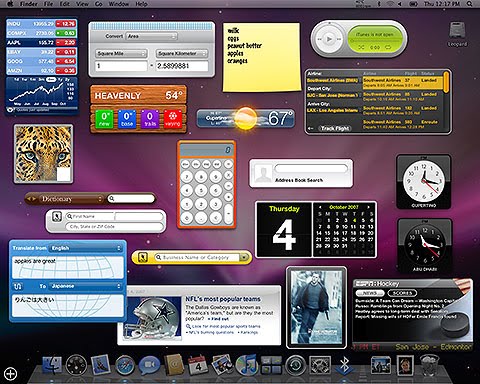
Not everything you do on your Mac requires a heavy-duty application. For those smaller tasks, Mac OS X features Dashboard, a semi-transparent layer that floats above your desktop at the press of a key, and provides access to several fun and functional, mini applications called widgets.
Dashboard even includes widgets for some of your Mac applications, including Address Book and iTunes, which allow you to access your contacts and music, respectively, without having to switch over to the full application. But it doesn't end there, you can add more widgets to Dashboard and, if you're feeling really ambitious, you can even create your own widgets.
By default, Dashboard starts up when you first turn on your Mac, but you won't actually see it until you open it by either clicking its icon in the Dock, pressing the F12 key or the Dashboard key (F4 on the aluminum keyboards). To hide Dashboard, click on any Dashboard area that doesn't contain a widget or press the F12 key again. Here's a quick start guide to Dashboard and the included widgets.
Working with Dashboard
Widgets
Here's a closer look at the widgets you'll find preinstalled in Dashboard, and how to use them.
Many widgets feature user options on their backsides so you can select the information to
display, such as the time in a chosen city in this World Clock widget.
Widget Manager
This widget manages other widgets. Uncheck Widgets that you don't want to use anymore and it will hide and disable them. You can keep check of all your available widgets from here.
Address Book
This widget feeds off Address Book proper, enabling you to look up a person's email address, phone number, and mailing address quickly. Just start typing a name in the search field, or click the arrow buttons to step through all entries.
Business
The Business widget is a great directory of local businesses and substitute for your yellow pages. Just type a business name or category (like "pizza") in the search field, and view your results in the expanded window. To change the local city, click the "i" button; enter a city, state, or zip code; and click Done.
Calculator
This electronic version works just like its real-world counterpart, letting you add, subtract, multiply, and divide numbers without thought. You can enter numbers by clicking the buttons or pressing the numeric keys on your keyboard.
Dictionary
Get word definitions, synonyms, and antonyms for any English language word you type in the search field. And because the dictionary is built into Leopard, you don't need an Internet connection to get this information.
ESPN
For sports fans, this widget displays the latest scores and news for your favorite baseball, basketball, football, and hockey teams. Just click the "i" button in the upper-right corner and choose a sport from the pop-up menu. When finished, click "News" to view the latest news feeds from ESPN or "Scores" to see how well your team is faring.
Flight Tracker
View the flight paths of practically any upcoming or in-progress flight around the world. Just choose an airline, departure city, and arrival city from the pop-up menus (or enter the information in the fields), click Find Flights, select the flight in the results, and click Track Flight.
Google
When you need information fast, just type what you're looking for into this widget to make Google scour the Internet on your command. Your default web browser will automatically open to display the search results.
iCal
This widget allows you to view the current day and date in a small calendar, as well as view days and dates in the future and past. Just click the up or down arrow buttons to jump through the calendar by month.
iTunes
This widget allows you to control iTunes playback (iTunes must be open for this to work). You can use the widget controls to play, pause, and skip forward and backward through songs in your iTunes Library or a playlist, or listen to Internet radio. You can even control volume with a twist of the outer dial.
Movies
Heading out to enjoy a movie? Use this widget to look up information about the latest releases and find show times at local theaters. Not sure if you would enjoy the movie? Watch movie trailers right in Dashboard, then click to buy tickets.
People
Feeling out of touch with friends and family? Don't use that old excuse of losing their phone numbers. Look them up with this widget, which can look up residential phone numbers by area. Just enter a first name, last name, and a city and state or zip code.
Ski Report
Find out the current weather and snow conditions at popular skiing locations across the country and head for the hills. Just click the "i" button in the bottom-right corner and type the name of a resort to get the current conditions, including the new snowfall, base depth, and temperature.
Stickies
Just like the paper version but for your Mac. Just type notes right on the Stickies pad. To change the paper color and font, click the "i" button in the bottom-right corner. Then select a paper color, choose a font from the Font pop-up menu, choose a font size from the other pop-up menu, and click Done.
Stocks
This widget lets you track your favorite stocks (with up to a 20-minute delay). To enter a company, click the "i" button in the bottom-right corner, type the company's name or ticker symbol in the field, and click Done. To get an overview of your stock's performance, click the company symbol to view a graph that shows the highs and lows over a user-selectable timeframe.
Tile Game
You probably remember this one as a kid; the goal of the game is to rearrange all the tiles so that they form a picture. Just click the widget to make it start scrambling the tiles. Click it again to make it stop. To rearrange tiles, click a tile that borders the empty space to move it in its place, and continue in this manner until you see the picture again.
Translation
For those times when you can't decipher a foreign language phrase, or you need to translate one of your own into another language, this widget comes in handy. Just choose the language that you want to translate from and to using the pop-up menus, and type the word or phrase in the text box below "Translate from." C'est facile!
Unit Converter
If you need to convert weights, measurements, temperatures, speeds, currency, volume, and other items, this widget will do the job. Just choose a unit category from the Convert pop-up menu, choose a unit that you want converted from the bottom-left pop-up menu, choose the unit that you want it converted to in the bottom-right pop-up menu, and enter a value in the left field to view the conversion to its right.
Weather
Be prepared wherever you may roam. The Weather widget displays the current weather conditions for the city of your choice in thermal terms (high, low, and current temperatures) and in current graphical conditions too. Click on the widget for a 5-day forecast. To change the city, click the "i" button; enter a city, state, or zip code; and click Done.
Web Clip
Say you check part of a particular website pretty often. Why not turn it into a widget? In Safari, click the Web Clip icon and select the part of the page you want to turn into a widget. Click Add and Safari launches your brand-new widget in Dashboard. From there you can customize it with a selection of themes. Your new web clip widget is always live, acting just like the website it was clipped from.
World Clock
The World Clock widget displays the local time for many cities around the world. Open multiple windows to keep track of different time zones. To change the city, click the "i" button, choose a continent from the Continent pop-up menu, choose a city from the City pop-up menu, and click Done.
Tip: Want to learn more about Dashboard? Check out the built-in Help guide on your Mac (in the Finder, choose Mac Help from the Help menu, and type dashboard in the search field).
Dashboard even includes widgets for some of your Mac applications, including Address Book and iTunes, which allow you to access your contacts and music, respectively, without having to switch over to the full application. But it doesn't end there, you can add more widgets to Dashboard and, if you're feeling really ambitious, you can even create your own widgets.
By default, Dashboard starts up when you first turn on your Mac, but you won't actually see it until you open it by either clicking its icon in the Dock, pressing the F12 key or the Dashboard key (F4 on the aluminum keyboards). To hide Dashboard, click on any Dashboard area that doesn't contain a widget or press the F12 key again. Here's a quick start guide to Dashboard and the included widgets.
Working with Dashboard
- Make Dashboard active by clicking the icon in the Dock, or pressing F12.
- A default set of widgets appears. You can move the widgets anywhere you want by simply dragging them, click and hold your mouse button on a widget and move your mouse—or finger, if you're using a trackpad.
- To see all the widgets on your Mac, click the open (+) button in the lower-left corner of the screen.
- The Widget Bar, which displays all widgets on your Mac, slides into view at the bottom of the screen. Click the arrow buttons on either side of the bar to display more widgets.
- To add a widget to Dashboard, simply click an icon in the Widget Bar.
- If you want to download more widgets, click the More Widgets button to go to the Apple Dashboard download webpage.
- To remove a widget from Dashboard, be sure that the Widget Bar is displayed, then click the unwanted widget's close button (the round, black button with a white X).
- To close the Widget Bar, click the close button on the lower-left part of the screen right above the Widget Bar.
- To use a widget, just select it and do your thing. In other words, if you click the Dictionary widget, type a word in its search field. If you click the Stickies widget, type a note or two. If you click the Tile Game widget, start playing.
Widgets
Here's a closer look at the widgets you'll find preinstalled in Dashboard, and how to use them.
Many widgets feature user options on their backsides so you can select the information to
display, such as the time in a chosen city in this World Clock widget.
Widget Manager
This widget manages other widgets. Uncheck Widgets that you don't want to use anymore and it will hide and disable them. You can keep check of all your available widgets from here.
Address Book
This widget feeds off Address Book proper, enabling you to look up a person's email address, phone number, and mailing address quickly. Just start typing a name in the search field, or click the arrow buttons to step through all entries.
Business
The Business widget is a great directory of local businesses and substitute for your yellow pages. Just type a business name or category (like "pizza") in the search field, and view your results in the expanded window. To change the local city, click the "i" button; enter a city, state, or zip code; and click Done.
Calculator
This electronic version works just like its real-world counterpart, letting you add, subtract, multiply, and divide numbers without thought. You can enter numbers by clicking the buttons or pressing the numeric keys on your keyboard.
Dictionary
Get word definitions, synonyms, and antonyms for any English language word you type in the search field. And because the dictionary is built into Leopard, you don't need an Internet connection to get this information.
ESPN
For sports fans, this widget displays the latest scores and news for your favorite baseball, basketball, football, and hockey teams. Just click the "i" button in the upper-right corner and choose a sport from the pop-up menu. When finished, click "News" to view the latest news feeds from ESPN or "Scores" to see how well your team is faring.
Flight Tracker
View the flight paths of practically any upcoming or in-progress flight around the world. Just choose an airline, departure city, and arrival city from the pop-up menus (or enter the information in the fields), click Find Flights, select the flight in the results, and click Track Flight.
When you need information fast, just type what you're looking for into this widget to make Google scour the Internet on your command. Your default web browser will automatically open to display the search results.
iCal
This widget allows you to view the current day and date in a small calendar, as well as view days and dates in the future and past. Just click the up or down arrow buttons to jump through the calendar by month.
iTunes
This widget allows you to control iTunes playback (iTunes must be open for this to work). You can use the widget controls to play, pause, and skip forward and backward through songs in your iTunes Library or a playlist, or listen to Internet radio. You can even control volume with a twist of the outer dial.
Movies
Heading out to enjoy a movie? Use this widget to look up information about the latest releases and find show times at local theaters. Not sure if you would enjoy the movie? Watch movie trailers right in Dashboard, then click to buy tickets.
People
Feeling out of touch with friends and family? Don't use that old excuse of losing their phone numbers. Look them up with this widget, which can look up residential phone numbers by area. Just enter a first name, last name, and a city and state or zip code.
Ski Report
Find out the current weather and snow conditions at popular skiing locations across the country and head for the hills. Just click the "i" button in the bottom-right corner and type the name of a resort to get the current conditions, including the new snowfall, base depth, and temperature.
Stickies
Just like the paper version but for your Mac. Just type notes right on the Stickies pad. To change the paper color and font, click the "i" button in the bottom-right corner. Then select a paper color, choose a font from the Font pop-up menu, choose a font size from the other pop-up menu, and click Done.
Stocks
This widget lets you track your favorite stocks (with up to a 20-minute delay). To enter a company, click the "i" button in the bottom-right corner, type the company's name or ticker symbol in the field, and click Done. To get an overview of your stock's performance, click the company symbol to view a graph that shows the highs and lows over a user-selectable timeframe.
Tile Game
You probably remember this one as a kid; the goal of the game is to rearrange all the tiles so that they form a picture. Just click the widget to make it start scrambling the tiles. Click it again to make it stop. To rearrange tiles, click a tile that borders the empty space to move it in its place, and continue in this manner until you see the picture again.
Translation
For those times when you can't decipher a foreign language phrase, or you need to translate one of your own into another language, this widget comes in handy. Just choose the language that you want to translate from and to using the pop-up menus, and type the word or phrase in the text box below "Translate from." C'est facile!
Unit Converter
If you need to convert weights, measurements, temperatures, speeds, currency, volume, and other items, this widget will do the job. Just choose a unit category from the Convert pop-up menu, choose a unit that you want converted from the bottom-left pop-up menu, choose the unit that you want it converted to in the bottom-right pop-up menu, and enter a value in the left field to view the conversion to its right.
Weather
Be prepared wherever you may roam. The Weather widget displays the current weather conditions for the city of your choice in thermal terms (high, low, and current temperatures) and in current graphical conditions too. Click on the widget for a 5-day forecast. To change the city, click the "i" button; enter a city, state, or zip code; and click Done.
Web Clip
Say you check part of a particular website pretty often. Why not turn it into a widget? In Safari, click the Web Clip icon and select the part of the page you want to turn into a widget. Click Add and Safari launches your brand-new widget in Dashboard. From there you can customize it with a selection of themes. Your new web clip widget is always live, acting just like the website it was clipped from.
World Clock
The World Clock widget displays the local time for many cities around the world. Open multiple windows to keep track of different time zones. To change the city, click the "i" button, choose a continent from the Continent pop-up menu, choose a city from the City pop-up menu, and click Done.
Tip: Want to learn more about Dashboard? Check out the built-in Help guide on your Mac (in the Finder, choose Mac Help from the Help menu, and type dashboard in the search field).
Dashboard
Change the Dashboard shelf's background image:
When you press the '+' symbol in the bottom left corner while Dashboard is active,
the Dashboard shelf slides up into view containing all your widgets.
The background image used for the shelf can be found here:
...System/Library/CoreServices/Dock.app/Contents/Resources/perf.png
You can replace this image with any PNG image you like and it'll be tiled,
or you can use a single, full width image.
The shelf is 118 pixels high and as wide as your monitor (1024 pixels in my case),
so you can use those dimensions to construct your own shelf background.
The bottom area (where the widget names appear) will need to be lighter in color for best results, as the text is both light and shadowed.
The height of the text area is 14 pixels.
Note also that you do not need to make your PNG file the full width of your monitor -- the image will repeat horizontally if it's not full-width.
You can use a tiny 2KB PNG to create the above full shelf background.
Over the course of the past few months, Dashboard had become painfully slow for me, sometimes taking 10 to 20 seconds to load. I took a look at:
~/Library/Caches/ DashboardClient
...and found that the Dashboard cache was 20MB. This seemed excessive,
so I took a gamble and deleted all the files in the DashboardClient folder.
Dashboard now loads almost instantaneously for me.
If you only use Dashboard on rare occasions, and don't want all those widgets to stay running forever, try the following AppleScript:
tell application "Dock"
quit
launch
end tell
quit
launch
end tell
This will relaunch the Dock and, since all the Dashboard widgets are subprocesses of the dock, they will be closed. Widgets will stay closed until Dashboard is invoked again.
This is a handy way to quickly free up the RAM used by open Dashboard widgets.
Run it, and the RAM is released.
Press F12 again after that, and you'll see that your open Widgets are all still open.
Widget Limbo !
When you have dragged a widget out of the Dashboard layer you can make it go into Widget Limbo like this: press and hold the mouse button over the widget; do not move the mouse.
Press F12. Release the mouse button.
The widget will now belong outside (beneath) Dashboard,
but only be visible (in a darkened state) when Dashboard is active.
So it's not possible to close it nor move it. (You can hold the Option key to close a widget).
Draging a widget out of the Dashboard shelf:
1 - Start by pressing F12 or whatever your definded key is.
2 - Click one a widget icon in the Dashboard's shelf, holding the mouse button down on the widget.
3 - Press F12 again. Release the widget.
2 - Click one a widget icon in the Dashboard's shelf, holding the mouse button down on the widget.
3 - Press F12 again. Release the widget.
That's it. To move a widget back into the Dashboard layer, click and hold the mouse on the one you want to get rid of, press F12, and release the mouse button.
Run a widget without installing it:
Normally when you download a widget and double-click it, you are presented with a dialog to install the widget.
You can either cancel, and exit the installer, or click install, and the widget is moved to you widgets folder (Library/widgets).
However, in some situations you don't want to move the widget.
For instance if you are trying out a widget and don't know if you want to keep it, or you are developing a widget and are just testing it out.
To stop the widget being installed:
Hold down Command and Option while double-clicking it.
Instead of an install button, you are presented with Run, which, funnily enough, allows you to run the widget without installing it.
Clicking this opens the widget up in dashboard, but it isn't moved to the widgets folder, instead running it from wherever you downloaded it to.
As a result the widget won't be in your dashboard bar, so it is a nifty trick if you want to save scrolling through loads of widgets (especially if you are a dashboard addict, like TheDashboard).
This also means that once you have closed the widget, its gone for good, and you can't open it up from within the dashboard.
Of course its still sitting in your downloads folder, so a quick Command-Option-Double-Click will have it open and running again.
Resize Web Clip Widgets:
If you use Safari’s new Web Clip feature to make a Dashboard widget out of a small Web item, you may be dismayed to find that Safari enforces a minimum size of about 128 by 128 pixels; you can’t make the Web Clip selection smaller than that.
The solution is simple if not obvious:After creating the widget, click on the i on the widget’s face and then click on Edit.
You’ll be able to resize and reframe the widget as you wish.
Launch Dashboard with the Mouse:
If you have a multibutton mouse and want to avoid using the keyboard just to invoke Dashboard, assign a mouse button to it instead. Let’s say you have an Apple Mighty Mouse.
Go to the Key-board & Mouse preference pane and click on the Mouse tab.
Then choose Dashboard from the pop-up menu corresponding to one of the buttons.
If you use a third-party mouse with its own software, follow the manufacturer’s instructions for configuring its extra buttons.
Show Widgets on the Desktop:
If you want to have a widget available from the desktop, not just Dashboard, turn on Dashboard’s developer mode.
In Terminal, enter:
defaults write com.apple.dashboard devmode YES
press return and type:
killall Dock
That done, press F12 to fire up Dashboard.
Click on any widget and begin dragging it.
Without releasing the mouse button, press F12 again.
The widget should move out of the Dashboard layer and onto the desktop, floating above all other windowsDisable Dashboard:
If you’d like to disable Dashboard, for either RAM usage or other reasons, here’s how to do it.
It requires a trip to the Terminal, in Applications > Utilities, but it’s not too hard to do.
Open Terminal, and then type this command, followed by the Return key:
defaults write com.apple.dashboard mcx-disabled -boolean YES
This tells the system that you no longer wish to have Dashboard available.
However, the Dashboard task is actually “owned” by the Dock, so to make your changes take effect, you need to restart the Dock.
The easiest way to do that is to type this command into the Terminal (and press Return when done):
killall Dock
After the Dock restarts, hit F12 and you’ll see…nothing at all.
If you run Activity Monitor, you also won’t find any Dashboard widgets in the list of tasks, even if you had several open when you ran the above command.
Dashboard has been eliminated from your system, and won’t return until you tell it to do so.You can do just that by opening Terminal again, and typing this command:
defaults write com.apple.dashboard mcx-disabled -boolean NO
Once again, you’ll have to use this command:
killall Dock
...to make the changes take effect.
Once you do, though, you’ll find that Dashboard is back as usual—and any widgets you had opened on the Dashboard will still be open.
Dasbhoard Keyboard Shortcuts:
Here are some useful keyboard shortcuts to remember:
Command-R – Refresh Widget
Command-= – Show/Hide Widget Tray
Command ←/→ – Scroll Widget Tray Left/Right
Hold option and hover over a widget to dispaly it’s close [X] button.
Must press control to get contextual menu, mouse right-clicking does not work.
Dashboard Guidelines

Dashboard Programming Topics:
(HTML) (PDF)
Explains Dashboard and WebKit technologies used in widgets.
Dashboard Reference:
(HTML) (PDF)
Explains JavaScript, Info.plist, and other objects used within Dashboard.
Dashboard Tutorial:
(HTML) (PDF)
Explains how to develop a Dashboard widget.
Debugging Dashboard Widgets:
(HTML)
TN2139: Dashboard widget troubleshooting techniques, from start to finish.
Developing Dashboard Widgets:
(HTML)
Learn how to create powerful mini-applications quickly and easily.
(10.4 Tiger Developer Overview)
Intel-Based Macs, Dashboard and Safari:
(HTML)
Details regarding widget and web development for Intel-based Macintosh computers.
Refreshing a widget !
A tough reference to find is keyboard shortcuts within Mac OS X Dashboard.I'm not talking about launching Dashboard - everyone knows you can set "hot keys" or mouse corners to trigger that. I'm referring to keyboard shortcuts once your in Dashboard view.
To refresh a specific widget, click on the widget once, and hit Command + R.
You'll notice a very cool "swirl" effect, which almost looks like a hurricane on a radar screen:

Every widget you refresh will perform this "swirl" action, and subsequently refresh the widget content.
If you're wondering what widget this was that I refreshed, it's the basic weather widget from Apple:

If you manually click the "+" icon in the lower left corner of Dashboard view, your "widget toolbar" will appear along the bottom.
Here you can add or remove widgets from display.
To open this "widget toolbar," you can also hit Command + "+".
That's Command and the "+" key at the same time. Hitting it again will close the "widget toolbar."
This is not so much a keyboard shortcut, but a keyboard adjustment.
If you hold down the "Option" key while in Dashboard view, and hover over a widget, you can manually remove the widget by clicking the "X" in the upper left corner of the widget.
The "X" only appears when you move the mouse over each widget.
This is quicker than opening the "widget toolbar" first, and then removing.
I'm making a list of additional shortcuts that would be useful:
To refresh a specific widget, click on the widget once, and hit Command + R.
You'll notice a very cool "swirl" effect, which almost looks like a hurricane on a radar screen:
Every widget you refresh will perform this "swirl" action, and subsequently refresh the widget content.
If you're wondering what widget this was that I refreshed, it's the basic weather widget from Apple:
If you manually click the "+" icon in the lower left corner of Dashboard view, your "widget toolbar" will appear along the bottom.
Here you can add or remove widgets from display.
To open this "widget toolbar," you can also hit Command + "+".
That's Command and the "+" key at the same time. Hitting it again will close the "widget toolbar."
This is not so much a keyboard shortcut, but a keyboard adjustment.
If you hold down the "Option" key while in Dashboard view, and hover over a widget, you can manually remove the widget by clicking the "X" in the upper left corner of the widget.
The "X" only appears when you move the mouse over each widget.
This is quicker than opening the "widget toolbar" first, and then removing.
I'm making a list of additional shortcuts that would be useful:
- Much like hitting Command + R refreshes a widget, hitting Command + I should provide info on the widget. (Only applicable for widgets that have a "back side" info panel.)
- Some way of removing widgets without having to manually click the "X". (I'm thinking Command + W or something similar.)